⚠️ Please read the description first!
• Start time: see title
• Speed: see title
• Refill:✔ 30 day
Before ordering:
- Do not place several orders for the same link at the same time; wait for the previous order to complete.
- Make sure the account/video is public. No region restrictions.
- Orders cannot be cancelled once started, and speed may vary with server load.
Based on this estimate, the amount is below the minimum credit card/ATM payment of NT$15. If your account balance is enough, you can pay with your balance; other methods are as shown at checkout.
Facebook #3141Facebook Video/Reels views · 3 sec
US$1/1,000 unitsapprox. NT$32
Quantity range500–1,000,000units
Facebook Video/Reels views · 3 sec
This item is labelled as 3-second views; use a video or Reels link.
Target link
Facebook video/Reels link; the content must be public with no region restrictions.
Start time
Publicly listed start: 0–1 hours.
Refill conditions
Public description: no refill.
Cancellation rules
Public description: cannot be cancelled once started.
Public information checked 2026-10-04. Start times are estimates, not a promise of completion.
View original service name and conditions
[3141] Facebook Video | Reels Views [1M] [1-10K/day] [WATCHTIME 3 SECONDS] [0-1 hours to start] - $1.00 per 1000
⚠️ Please read the description first!
• Start time: see title
• Speed: see title
• Refill:✘
Before ordering:
- Do not place several orders for the same link at the same time; wait for the previous order to complete.
- Make sure the account/video is public. No region restrictions.
- Orders cannot be cancelled once started, and speed may vary with server load.
This is an estimate at the public standard rate; member offers, payment methods and the amount due are confirmed at checkout after you log in.
YouTube #2405YouTube Video views
US$2.16/1,000 unitsapprox. NT$69.12
Quantity range100–100,000units
YouTube Video views
This item is for YouTube video views; the public information does not state Shorts support.
Target link
YouTube video link; the content must be public with no region restrictions.
Start time
The title states a 0–1 hour start.
Refill conditions
The public description says refills are provided (LIFETIME), but no claim conditions are listed; please ask support first.
Cancellation rules
Public description: cannot be cancelled once started.
Public information checked 2026-10-04. Start times are estimates, not a promise of completion.
View original service name and conditions
[2405] YouTube Views [1M] [1K/day] [LIFETIME] [0-1 hours to start] - $2.16 per 1000
⚠️ Please read the description first!
• Start time: see title
• Speed: see title
• Refill:✔ LIFETIME
Before ordering:
- Do not place several orders for the same link at the same time; wait for the previous order to complete.
- Make sure the account/video is public. No region restrictions.
- Orders cannot be cancelled once started, and speed may vary with server load.
This is an estimate at the public standard rate; member offers, payment methods and the amount due are confirmed at checkout after you log in.
View more service prices TikTok, Spotify, Telegram, LINE Custom names
Service prices and estimates for more platforms
Platform and service
Unit price
Quantity range
View specs and estimate
TikTok #2066TikTok Ad views
US$0.78/1,000 unitsapprox. NT$24.96
Quantity range25,000–100,000,000units
TikTok Ad views
This item is labelled as ad (ADS) views; the minimum quantity is 25,000, so check the total for your actual quantity.
Target link
TikTok video link; the content must be public with no region restrictions.
Start time
Publicly listed start: 0–12 hours.
Refill conditions
Public description: no refill.
Cancellation rules
Public description: cannot be cancelled once started.
Public information checked 2026-10-04. Start times are estimates, not a promise of completion.
View original service name and conditions
[2066] TikTok ADS Views [100M] [50K/day] [0-12 hours to start] READ DESCRIPTION‼️ - $0.78 per 1000
⚠️ Please read the description first!
• Start time: see title
• Speed: see title
• Refill:✘
Before ordering:
- Do not place several orders for the same link at the same time; wait for the previous order to complete.
- Make sure the account/video is public. No region restrictions.
- Orders cannot be cancelled once started, and speed may vary with server load.
This is an estimate at the public standard rate; member offers, payment methods and the amount due are confirmed at checkout after you log in.
Spotify #2626Spotify Song plays
US$0.44/1,000 unitsapprox. NT$14.08
Quantity range1,000–1,000,000units
Spotify Song plays
Plays are not the same as monthly listeners; confirm which type of Spotify link to use first.
Target link
Spotify link; please check the supported content types with support first.
Start time
Publicly listed start: 0–12 hours.
Refill conditions
The public description says refills are provided (LIFETIME), but no claim conditions are listed; please ask support first.
Cancellation rules
Public description: cannot be cancelled once started.
Public information checked 2026-10-04. Start times are estimates, not a promise of completion.
View original service name and conditions
[2626] Spotify Plays [1M] [1-20K/day] [LIFETIME] [0-12 hours to start] - $0.44 per 1000
⚠️ Please read the description first!
• Start time: see title
• Speed: see title
• Refill:✔ LIFETIME
Before ordering:
- Do not place several orders for the same link at the same time; wait for the previous order to complete.
- Make sure the account/video is public. No region restrictions.
- Orders cannot be cancelled once started, and speed may vary with server load.
This is an estimate at the public standard rate; member offers, payment methods and the amount due are confirmed at checkout after you log in.
Telegram #453Telegram Group/channel members
US$2.34/1,000 person(s)approx. NT$74.88
Quantity range500–1,000,000person(s)
Telegram Group/channel members
This item is for group/channel members; do not enter the URL of a single post.
Target link
Telegram group or channel link.
Start time
Publicly listed start: 0–12 hours.
Refill conditions
Public description: no refill.
Cancellation rules
Public description: cannot be cancelled once started.
Public information checked 2026-10-04. Start times are estimates, not a promise of completion.
View original service name and conditions
[453] Telegram Group/Channel Members [1M] [10-30K/day] [0-12 hours to start] - $2.34 per 1000
⚠️ Please read the description first!
• Start time: see title
• Speed: see title
• Refill:✘
Before ordering:
- Do not place several orders for the same link at the same time; wait for the previous order to complete.
- Make sure the account/video is public. No region restrictions.
- Orders cannot be cancelled once started, and speed may vary with server load.
Operated by Fu Xin Co., Ltd. in Taiwan. For questions about choosing, give the service ID; for order questions, have your order number, target link and a description of the issue ready.
Credit card and ATM payments go through ECPay, with a minimum payment of NT$15; cryptocurrency goes through NOWPayments. Services are priced in USD and converted to TWD at 1:32. The checkout page shows the methods actually available and the amount due.
Prices, payment, progress and support. Each platform also has its own service guide.
Do I have to top up before ordering?
The member ordering flow currently offers direct checkout and payment from your account balance. After filling in the service details, check the total, then choose a payment method shown on the checkout page; at checkout you can pay directly or with your balance.
“Per 1,000” and “Minimum quantity”: what do they mean?
Per 1,000 is the rate unit; the minimum quantity is the threshold for ordering. The total is the unit price multiplied by the actual quantity. LINE members are priced per person and read mode is a subscription, so do not compare different units directly.
How are TWD and USD converted?
Our services are priced in USD. TWD amounts use the rate 1 USD = NT$32 for conversion. For example, USD 10 corresponds to NT$320. The minimum payment by credit card/ATM is NT$15; please confirm the actual checkout amount before paying.
Is the estimated start time the completion time?
No. The start time is when processing may begin; the completion time also depends on the quantity, the service conditions and the load. Check the service description and the progress in the Member Center, and do not assume the whole order is complete because it has started.
Can I cancel or get a refill after a service starts?
It depends on the rules of each item: some services cannot be cancelled once started, and refills may have a limited period and conditions. Do not judge by the abbreviations in the name alone; if in doubt, check that service ID with support first.
My order is not complete. What information should I provide?
Provide the order number, the target link and the problem you are seeing, and contact us through support in the Member Center or at b071283@gmail.com. Support will check the order records and the conditions of that service to decide the next steps.
Start with the platform you need.
Check the service details, unit price and conditions before you buy.
Choose a service based on how your OpenChat is joined. Regular joining, approval-required OpenChats, custom names and read-mode subscriptions each have different requirements and pricing.
OpenChat membersCustom namesGroup read mode
What to prepare
The regular OpenChat service needs a link and a quantity; the custom-name service takes one name per line. For approval mode, check the form requirements separately.
How to compare services
Member services are priced per person; read mode is a subscription service, so check its subscription price and validity separately.
Notes for this platform
The regular OpenChat service 20001 does not work for OpenChats with a join password. For the approval-mode and custom-name services, read the requirements of each service separately.
LINE services and prices.
These are examples. For everything available, refer to the official catalog.
Services, pricing units, quantity ranges and cost estimates
Platform and service
Unit price
Quantity range
View specs and estimate
LINE #20001LINE OpenChat members
US$0.124/person(s)approx. NT$3.968
Quantity range10–1,500person(s)
LINE OpenChat members
The regular OpenChat service 20001 does not work for OpenChats with a join password. For the approval-mode and custom-name services, read the requirements of each service separately.
View original service name and conditions
[20001] LINE OpenChat service
Provide the LINE OpenChat link and the target quantity. Do not set a join password on the OpenChat.
This is an estimate at the public standard rate; member offers, payment methods and the amount due are confirmed at checkout after you log in.
LINE #20002LINE OpenChat members · approval mode
US$0.217/person(s)approx. NT$6.944
Quantity range10–1,500person(s)
LINE OpenChat members · approval mode
The regular OpenChat service 20001 does not work for OpenChats with a join password. For the approval-mode and custom-name services, read the requirements of each service separately.
View original service name and conditions
[20002] LINE OpenChat service (approval mode)
Use this service if your LINE OpenChat requires approval to join. Do not set a join password on the OpenChat.
This is an estimate at the public standard rate; member offers, payment methods and the amount due are confirmed at checkout after you log in.
LINE #20005LINE OpenChat custom names
US$0.217/person(s)approx. NT$6.944
Quantity range50–1,500person(s)
LINE OpenChat custom names
The regular OpenChat service 20001 does not work for OpenChats with a join password. For the approval-mode and custom-name services, read the requirements of each service separately.
View original service name and conditions
[20005] LINE OpenChat custom names
Choose the names of the members who join the LINE OpenChat; enter one name per line.
This is an estimate at the public standard rate; member offers, payment methods and the amount due are confirmed at checkout after you log in.
LINE #20006LINE OpenChat/group read mode · monthly
US$40/30 days per linkapprox. NT$1,280
Quantity range1–1subscription
LINE OpenChat/group read mode · monthly
After purchase, messages in the specified LINE OpenChat or group link are marked as read every day. Valid for 30 days; it stops automatically when it expires and can be renewed on the Orders page.
View original service name and conditions
[20006] OpenChat / group read mode (monthly)
After purchase, messages in the specified LINE OpenChat or group link are marked as read every day. Valid for 30 days; it stops automatically when it expires and can be renewed on the Orders page.
This is an estimate at the public standard rate; member offers, payment methods and the amount due are confirmed at checkout after you log in.
LINE common questions.
Based on the actual services for this platform.
Regular joining or approval mode: which should I choose?
Choose based on the actual settings of your OpenChat: OpenChats anyone can join directly use the regular service; for OpenChats that require approval, first check the required information for approval mode. The regular OpenChat service description asks you not to set a join password.
What do I need for custom names?
Provide the target OpenChat link and a name list, one name per line. The public quantity range for service 20005 is 50–1,500; confirm the name content and requirements on the order page.
Is the read service the same as adding members?
No. Member services are priced per person, while read mode marks messages as read for the specified link. The public read-mode subscription is currently USD 40 per 30 days; it stops when it expires and can be renewed on the Orders page.
Compiled by the SocialContactApp service team · Data checked 2026-10-04. Prices and quantities are taken from the public service catalog; if a service name and its description do not match, please check with support first.
⚠️ Please read the description first!
• Start time: see title
• Speed: see title
• Refill:✔ 30 day
Before ordering:
- Do not place several orders for the same link at the same time; wait for the previous order to complete.
- Make sure the account/video is public. No region restrictions.
- Orders cannot be cancelled once started, and speed may vary with server load.
Based on this estimate, the amount is below the minimum credit card/ATM payment of NT$15. If your account balance is enough, you can pay with your balance; other methods are as shown at checkout.
Instagram #3844Instagram Post likes·MIX
US$0.42/1,000 likesapprox. NT$13.44
Quantity range10–1,000,000likes
Instagram Post likes·MIX
The like services listed cannot be cancelled once started. For the same link, wait until the previous order is complete before ordering again.
View original service name and conditions
[3844] Instagram Likes [1M] [5-10K/day] [R30] [0-1 hours to start] [Real] [MIX] - $0.42 per 1000
⚠️ Please read the description first!
• Start time: see title
• Speed: see title
• Refill:✔ 30 day
Before ordering:
- Do not place several orders for the same link at the same time; wait for the previous order to complete.
- Make sure the account/video is public. No region restrictions.
- Orders cannot be cancelled once started, and speed may vary with server load.
Based on this estimate, the amount is below the minimum credit card/ATM payment of NT$15. If your account balance is enough, you can pay with your balance; other methods are as shown at checkout.
Instagram common questions.
Based on the actual services for this platform.
Should I enter an account or a post for like services?
Like services target a specific post, so prepare that post link; account followers and video views each have their own target links. Check the service name and link type before submitting.
Does a price per 1,000 mean I must buy 1,000 at a time?
No. Per 1,000 is the pricing unit; the minimum and maximum quantities are listed separately. For example, service 3222 is priced per 1,000 likes, and the actual quantity must still be within its range.
How do the like services differ?
Compare region conditions, quantity ranges, estimated start times and refill conditions. If the labels in the name and the detailed description do not match, check with support first; do not assume there is a guarantee.
Compiled by the SocialContactApp service team · Data checked 2026-10-04. Prices and quantities are taken from the public service catalog; if a service name and its description do not match, please check with support first.
Facebook services can target Pages, single posts, videos and Groups. First confirm which kind of page you need, then compare view, like or member services.
Page followersPost engagementVideo views
What to prepare
Make sure the content is public with no region restrictions; video views need a video link, and Group member services use the Group link.
How to compare services
Video services can differ in watch time, quantity range and speed. Video views and Page followers use different units and cannot be compared directly.
Notes for this platform
The video services listed cannot be cancelled once started; do not place several orders for the same link at the same time.
Facebook services and prices.
These are examples. For everything available, refer to the official catalog.
Services, pricing units, quantity ranges and cost estimates
Platform and service
Unit price
Quantity range
View specs and estimate
Facebook #3141Facebook Video/Reels views · 3 sec
US$1/1,000 unitsapprox. NT$32
Quantity range500–1,000,000units
Facebook Video/Reels views · 3 sec
The video services listed cannot be cancelled once started; do not place several orders for the same link at the same time.
View original service name and conditions
[3141] Facebook Video | Reels Views [1M] [1-10K/day] [WATCHTIME 3 SECONDS] [0-1 hours to start] - $1.00 per 1000
⚠️ Please read the description first!
• Start time: see title
• Speed: see title
• Refill:✘
Before ordering:
- Do not place several orders for the same link at the same time; wait for the previous order to complete.
- Make sure the account/video is public. No region restrictions.
- Orders cannot be cancelled once started, and speed may vary with server load.
This is an estimate at the public standard rate; member offers, payment methods and the amount due are confirmed at checkout after you log in.
Facebook #2207Facebook Video views · 3 sec
US$1/1,000 unitsapprox. NT$32
Quantity range500–100,000units
Facebook Video views · 3 sec
The video services listed cannot be cancelled once started; do not place several orders for the same link at the same time.
View original service name and conditions
[2207] Facebook Video Views [100K] [5-20K/day] [WATCHTIME 3 SECONDS] [0-1 hours to start] - $1.00 per 1000
⚠️ Please read the description first!
• Start time: see title
• Speed: see title
• Refill:✘
Before ordering:
- Do not place several orders for the same link at the same time; wait for the previous order to complete.
- Make sure the account/video is public. No region restrictions.
- Orders cannot be cancelled once started, and speed may vary with server load.
This is an estimate at the public standard rate; member offers, payment methods and the amount due are confirmed at checkout after you log in.
Facebook common questions.
Based on the actual services for this platform.
What is the difference between video views and Page followers?
Video views target a single video; Page followers target a Page. When choosing, first decide which number you want to grow, then provide the matching link.
Does watch time make a difference?
Some items list the watch time in seconds in the service name. For example, 3141 and 2207 shown here are both labelled 3-second views; check other items separately.
Are there services for Groups too?
The public catalog has Facebook Group member services. Compare their quantity ranges and requirements on the Facebook platform page, and make sure your Group settings meet the service conditions.
Compiled by the SocialContactApp service team · Data checked 2026-10-04. Prices and quantities are taken from the public service catalog; if a service name and its description do not match, please check with support first.
Long-form videos, Shorts and channels are different targets. Views are counted per video, subscribers target a channel, and likes and comments target specific content.
Video viewsShorts engagementChannel subscribers
What to prepare
Provide the correct public video or channel link and make sure there are no region restrictions. For Shorts services, check whether that kind of URL is accepted.
How to compare services
View services may have extra source and watch-time conditions; read the refill labels item by item too, rather than judging by unit price alone.
Notes for this platform
A service quantity is not a guarantee of revenue, subscriber retention or recommendation exposure. Choose according to your actual needs and the service conditions.
YouTube services and prices.
These are examples. For everything available, refer to the official catalog.
Services, pricing units, quantity ranges and cost estimates
Platform and service
Unit price
Quantity range
View specs and estimate
YouTube #2315YouTube Long-form/Shorts views
US$1.8/1,000 unitsapprox. NT$57.6
Quantity range100–100,000units
YouTube Long-form/Shorts views
A service quantity is not a guarantee of revenue, subscriber retention or recommendation exposure. Choose according to your actual needs and the service conditions.
View original service name and conditions
[2315] YouTube Short And Long Views [100K] [500-1.5K/day] [LIFETIME] [INSTANT] - $1.80 per 1000
⚠️ Please read the description first!
• Start time: see title
• Speed: see title
• Refill:✔ LIFETIME
Before ordering:
- Do not place several orders for the same link at the same time; wait for the previous order to complete.
- Make sure the account/video is public. No region restrictions.
- Orders cannot be cancelled once started, and speed may vary with server load.
This is an estimate at the public standard rate; member offers, payment methods and the amount due are confirmed at checkout after you log in.
YouTube #3895YouTube Shorts Likes
US$7.8/1,000 likesapprox. NT$249.6
Quantity range10–100,000likes
YouTube Shorts Likes
A service quantity is not a guarantee of revenue, subscriber retention or recommendation exposure. Choose according to your actual needs and the service conditions.
View original service name and conditions
[3895] YouTube Shorts Likes [100K] [5K-7K/day] [NON-DROP] [0-1 hours to start] - $7.80 per 1000
⚠️ Please read the description first!
• Start time: see title
• Speed: see title
• Refill:✘
Before ordering:
- Do not place several orders for the same link at the same time; wait for the previous order to complete.
- Make sure the account/video is public. No region restrictions.
- Orders cannot be cancelled once started, and speed may vary with server load.
This is an estimate at the public standard rate; member offers, payment methods and the amount due are confirmed at checkout after you log in.
YouTube common questions.
Based on the actual services for this platform.
Shorts and regular videos: can they use the same service?
Only when the service clearly states that it supports both. The name of service 2315 shown on this page includes Short And Long; for other items, check the detailed description.
Do view services guarantee revenue or recommendations?
This page does not guarantee revenue, channel eligibility or recommendation exposure. The quantity a service handles, its conditions of use and the evaluation system of the platform itself should be understood separately.
How should I read the refill conditions?
Read both the service name and the detailed description. If they say different things, check the applicable conditions with support before deciding whether to order.
Compiled by the SocialContactApp service team · Data checked 2026-10-04. Prices and quantities are taken from the public service catalog; if a service name and its description do not match, please check with support first.
Short-video views, likes, account followers and live-stream views are different services. Before choosing, confirm whether the target is a single video, an account or a live stream in progress.
Video viewsLikes and sharesAccount followers
What to prepare
Make sure the video and account are public and prepare the correct target link. For live-stream services, also note the stream time slot and watch-time conditions.
How to compare services
Compare the minimum quantity and the price per 1,000 separately; low-priced items may still require a higher minimum order.
Notes for this platform
The listed ad view service has a minimum of 25,000; estimate the total with your actual quantity first.
TikTok services and prices.
These are examples. For everything available, refer to the official catalog.
Services, pricing units, quantity ranges and cost estimates
Platform and service
Unit price
Quantity range
View specs and estimate
TikTok #2066TikTok Ad views
US$0.78/1,000 unitsapprox. NT$24.96
Quantity range25,000–100,000,000units
TikTok Ad views
The listed ad view service has a minimum of 25,000; estimate the total with your actual quantity first.
View original service name and conditions
[2066] TikTok ADS Views [100M] [50K/day] [0-12 hours to start] READ DESCRIPTION‼️ - $0.78 per 1000
⚠️ Please read the description first!
• Start time: see title
• Speed: see title
• Refill:✘
Before ordering:
- Do not place several orders for the same link at the same time; wait for the previous order to complete.
- Make sure the account/video is public. No region restrictions.
- Orders cannot be cancelled once started, and speed may vary with server load.
This is an estimate at the public standard rate; member offers, payment methods and the amount due are confirmed at checkout after you log in.
TikTok common questions.
Based on the actual services for this platform.
The unit price is low, so why is the total higher?
Because the rate and the minimum quantity are two different things. For example, service 2066 costs USD 0.78 per 1,000, but the minimum quantity is 25,000, so the minimum amount is USD 19.50.
Can video views and live-stream views be used interchangeably?
No. Videos and live streams differ in links, timing and service conditions; choose by the item name.
How long will it take to complete?
The start time and the completion time are different, and actual processing depends on the quantity and service load. Read the service description before ordering, and check the status in the Member Center afterwards.
Compiled by the SocialContactApp service team · Data checked 2026-10-04. Prices and quantities are taken from the public service catalog; if a service name and its description do not match, please check with support first.
Song plays, artist followers, playlist followers and monthly listeners are different metrics. Confirm your target first, then choose the matching service and region conditions.
Song playsArtist followersMonthly listeners
What to prepare
Song services need the song link; artist and playlist services need the matching page.
How to compare services
Region, speed, refill and minimum quantity all affect your choice. Do not treat plays as the number of different listeners.
Notes for this platform
Plays and monthly listeners are defined differently; choose by the service name.
Spotify services and prices.
These are examples. For everything available, refer to the official catalog.
Services, pricing units, quantity ranges and cost estimates
Platform and service
Unit price
Quantity range
View specs and estimate
Spotify #2626Spotify Song plays
US$0.44/1,000 unitsapprox. NT$14.08
Quantity range1,000–1,000,000units
Spotify Song plays
Plays and monthly listeners are defined differently; choose by the service name.
View original service name and conditions
[2626] Spotify Plays [1M] [1-20K/day] [LIFETIME] [0-12 hours to start] - $0.44 per 1000
⚠️ Please read the description first!
• Start time: see title
• Speed: see title
• Refill:✔ LIFETIME
Before ordering:
- Do not place several orders for the same link at the same time; wait for the previous order to complete.
- Make sure the account/video is public. No region restrictions.
- Orders cannot be cancelled once started, and speed may vary with server load.
This is an estimate at the public standard rate; member offers, payment methods and the amount due are confirmed at checkout after you log in.
Spotify common questions.
Based on the actual services for this platform.
Are plays the same as monthly listeners?
They are different metrics. Play services target the number of plays, while monthly listeners are a different type of service and must be bought separately.
Compiled by the SocialContactApp service team · Data checked 2026-10-04. Prices and quantities are taken from the public service catalog; if a service name and its description do not match, please check with support first.
Services, pricing units, quantity ranges and cost estimates
Platform and service
Unit price
Quantity range
View specs and estimate
X / Twitter #1708X Post views and impressions
US$0.06/1,000 unitsapprox. NT$1.92
Quantity range100–10,000,000units
X Post views and impressions
First confirm how many posts are targeted and how the quantity is defined, then compare rates.
View original service name and conditions
[1708] Twitter Tweet Views + Impressions [10M] [1-2M/day] [INSTANT] [WORKING WITH OVERDELIVERY] - $0.06 per 1000
⚠️ Please read the description first!
• Start time: see title
• Speed: see title
• Refill:✘
Before ordering:
- Do not place several orders for the same link at the same time; wait for the previous order to complete.
- Make sure the account/video is public. No region restrictions.
- Orders cannot be cancelled once started, and speed may vary with server load.
Based on this estimate, the amount is below the minimum credit card/ATM payment of NT$15. If your account balance is enough, you can pay with your balance; other methods are as shown at checkout.
X / Twitter common questions.
Based on the actual services for this platform.
What is the difference between single-post and multi-post views?
The catalog has items for a specific post and items for your latest few posts; they cover different scopes, so check the item name.
Compiled by the SocialContactApp service team · Data checked 2026-10-04. Prices and quantities are taken from the public service catalog; if a service name and its description do not match, please check with support first.
Services, pricing units, quantity ranges and cost estimates
Platform and service
Unit price
Quantity range
View specs and estimate
Telegram #453Telegram Group/channel members
US$2.34/1,000 person(s)approx. NT$74.88
Quantity range500–1,000,000person(s)
Telegram Group/channel members
Check the link and quantity range first, and do not use a channel URL for a service that targets a specific post.
View original service name and conditions
[453] Telegram Group/Channel Members [1M] [10-30K/day] [0-12 hours to start] - $2.34 per 1000
⚠️ Please read the description first!
• Start time: see title
• Speed: see title
• Refill:✘
Before ordering:
- Do not place several orders for the same link at the same time; wait for the previous order to complete.
- Make sure the account/video is public. No region restrictions.
- Orders cannot be cancelled once started, and speed may vary with server load.
This is an estimate at the public standard rate; member offers, payment methods and the amount due are confirmed at checkout after you log in.
Telegram common questions.
Based on the actual services for this platform.
Can group members and post views use the same link?
Follow the requirements of each service. Join services point to a group or channel; post views usually need a specific post as the target.
Compiled by the SocialContactApp service team · Data checked 2026-10-04. Prices and quantities are taken from the public service catalog; if a service name and its description do not match, please check with support first.
The name of the follower service shown on this page states that it accepts both company pages and personal profiles.
View original service name and conditions
[1590] LinkedIn Followers [10K] [50-150/day] [R30] [0-12 hours to start] [COMPANY+PROFILE PAGE] - $78.44 per 1000
⚠️ Please read the description first!
• Start time: see title
• Speed: see title
• Refill:✔ 30 day
Before ordering:
- Do not place several orders for the same link at the same time; wait for the previous order to complete.
- Make sure the account/video is public. No region restrictions.
- Orders cannot be cancelled once started, and speed may vary with server load.
This is an estimate at the public standard rate; member offers, payment methods and the amount due are confirmed at checkout after you log in.
LinkedIn common questions.
Based on the actual services for this platform.
Can I use both company pages and personal profiles?
The name of service 1590 says COMPANY+PROFILE PAGE; for other items, check the accepted page types one by one.
Compiled by the SocialContactApp service team · Data checked 2026-10-04. Prices and quantities are taken from the public service catalog; if a service name and its description do not match, please check with support first.
Services, pricing units, quantity ranges and cost estimates
Platform and service
Unit price
Quantity range
View specs and estimate
Threads #3143Threads Account followers
US$3.46/1,000 person(s)approx. NT$110.72
Quantity range10–10,000person(s)
Threads Account followers
The full range is currently listed in the complete service catalog.
View original service name and conditions
[3143] Threads Followers [10K] [500-2K/day] [R30] [0-3 hours to start] [WORLDWIDE] - $3.46 per 1000
⚠️ Please read the description first!
• Start time: see title
• Speed: see title
• Refill:✔ 30 day
Before ordering:
- Do not place several orders for the same link at the same time; wait for the previous order to complete.
- Make sure the account/video is public. No region restrictions.
- Orders cannot be cancelled once started, and speed may vary with server load.
This is an estimate at the public standard rate; member offers, payment methods and the amount due are confirmed at checkout after you log in.
Threads #3146Threads Post likes
US$18.76/1,000 likesapprox. NT$600.32
Quantity range10–10,000likes
Threads Post likes
The full range is currently listed in the complete service catalog.
View original service name and conditions
[3146] Threads Likes [10K] [500-1K/day] [R30] [0-24 hours to start] [WORLDWIDE] - $18.76 per 1000
⚠️ Please read the description first!
• Start time: see title
• Speed: see title
• Refill:✔ 30 day
Before ordering:
- Do not place several orders for the same link at the same time; wait for the previous order to complete.
- Make sure the account/video is public. No region restrictions.
- Orders cannot be cancelled once started, and speed may vary with server load.
This is an estimate at the public standard rate; member offers, payment methods and the amount due are confirmed at checkout after you log in.
Threads common questions.
Based on the actual services for this platform.
Where can I see all Threads services?
The full public service catalog currently lists Threads follower and like items; you can search by service name or ID.
Compiled by the SocialContactApp service team · Data checked 2026-10-04. Prices and quantities are taken from the public service catalog; if a service name and its description do not match, please check with support first.
SocialContactApp provides LINE and multi-platform social media services and is operated by Fu Xin Co., Ltd. in Taiwan.
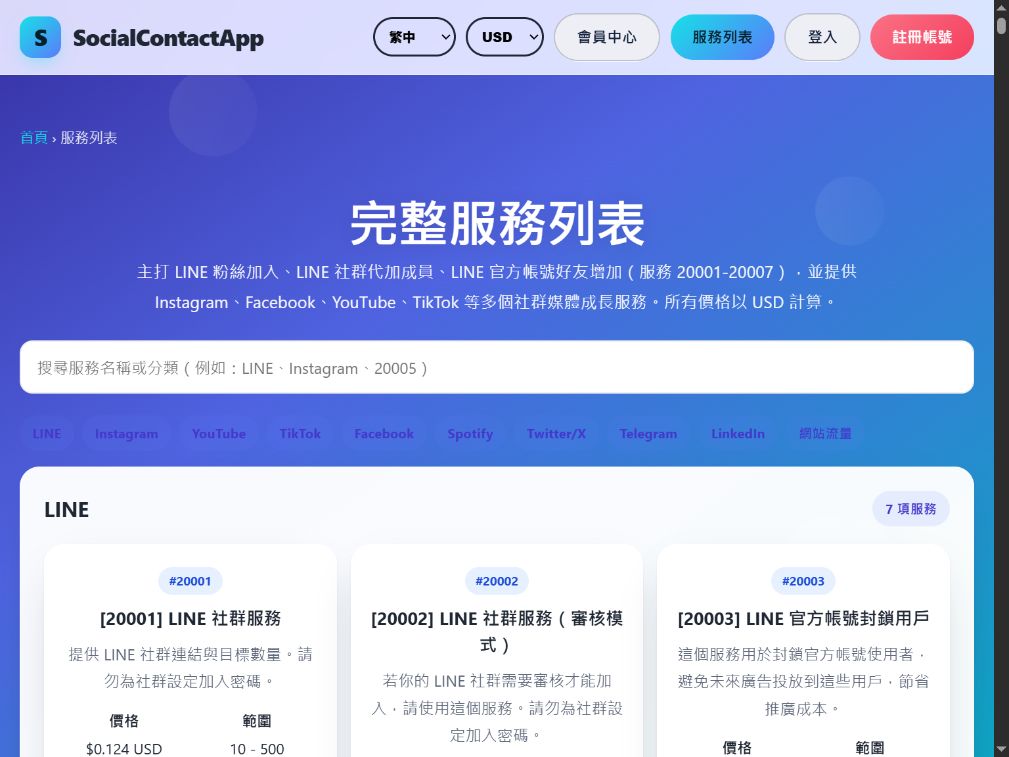
View the actual public service pageCurrent public catalog page · captured 2026-09-09. It shows the actual services; this image is not a customer case study.Check against the current public catalog ↗
Check the details and prices first
Compare service names, pricing units and quantity ranges in the public catalog, then prepare the information following the platform guide. Processing, refill and cancellation conditions differ by service; the description of the item you choose applies.
After you buy, track your order
After logging in, check the service details and payment method. Order progress and records are all in the Member Center; if you need help, provide the service ID or order number.
The refill and cancellation fields quote the public service descriptions; if nothing is listed, that does not mean cancellation is possible or a refill is guaranteed. See the service details for the full conditions.
3 min read · Data checked 2026-10-04
LINE Regular OpenChat or approval mode: which to choose?
Check the join settings of your OpenChat first, then the number of members and the required information.
First check: OpenChat or regular group?
Before buying, check the target link and how members join. The regular OpenChat service #20001 and the approval-required #20002 are separate; regular groups have #20007. Do not swap them just because the prices are the same.
Regular OpenChat · #20001
Public rate US$0.124 per person, 10–1,500 people. Provide the OpenChat link, the quantity and the region the form asks for. The public description asks you not to set an OpenChat join password.
Approval required · #20002
Public rate US$0.217 per person, 10–1,500 people. The form has additional required approval details. This is different from setting an “OpenChat join password”; if you are unsure what to provide, ask support first.
Custom names · #20005
Public rate US$0.217 per person, 50–1,500 people. One name per line; the number of non-empty lines is the number of people, so the length of the list affects the total.
Same 100 people: how do the costs compare?
Regular OpenChat is US$12.40 and approval mode is US$21.70. This is an example calculated from public rates; first choose the item that matches your OpenChat settings, then compare prices.
Read-mode subscriptions are a separate case
#20006 costs US$40 per link for 30 days, fixed at one subscription. It provides read mode, not members, so its subscription price cannot be compared directly with a per-person price.
This article is based on public service information and the current process as of 2026-09-09. Check individual service conditions and the checkout amount again before buying.
Choosing between similar plans? Compare the target first, then the total.
Pick services on the same platform with the same target, compare costs at the same quantity, then check the requirements and after-sales conditions.
Services with similar names: how do I tell which fits?
First decide which metric you want to grow. Account followers, single-post likes, video views and live-stream views are different needs. For example, Instagram account followers and Reels views use different target links and are counted differently.
Find plans with the same platform, target type and pricing unit. Then check the region, quantity range, whether a public account is required, and the content type. For LINE, also check the join settings of the OpenChat.
Compare estimated costs at the same quantity. Go to: Service catalog, then press “Add to compare” to choose up to three. If their orderable quantities do not overlap, the page shows the minimum purchase total of each, so read the totals together with the quantities.
Ask about anything unconfirmed. For example, start time, speed, refill limits or whether you can cancel. If nothing is clearly stated, note the service ID and check with support.
Example: if you want views for a single YouTube video, first rule out channel subscribers and live-stream views, then compare the video view items. Services with similar prices may still require different links or content conditions.
How do minimum quantity, unit price and total work?
The minimum quantity is the order threshold, and the pricing unit is used to calculate the cost. “Per 1,000” does not necessarily mean you must buy 1,000 each time; check the minimum and maximum quantity of the item first.
Priced per person
Suppose the rate is US$0.10 per person and you order 100 people: 0.10 × 100 = US$10.
Priced per 1,000
Suppose the rate is US$2 per 1,000 and the service allows an order of 500: 2 × 500 ÷ 1,000 = US$1.
Fixed-term subscription
Check how many targets one subscription covers, how long it is valid and how it is renewed. A subscription fee cannot be compared directly with a per-person or per-unit rate.
These are calculation examples, not live quotes for any service. TWD reference amounts on this site use the rate 1 USD = NT$32 for conversion; member discounts, available payment methods and the actual amount due are shown on the order and checkout screens after you log in.
How far should I confirm the conditions of upstream services?
Target and quantity
Does it accept accounts, posts or videos? Does the target need to be public? Is there a minimum, maximum or other limit on quantity?
Time and speed
Is it the estimated start time, the processing speed or the estimated completion time? Are any conditions attached?
Refill and cancellation
Does it apply to this service ID? What are the period, the exceptions and the way to request it? Keep a record of what was confirmed.
Words such as “fast” or “stable” and refill abbreviations in a service name must still be read together with the full description. Some items on this site are connected to upstream providers; where no description is given, that does not mean any unwritten guarantee applies.
After logging in and choosing a service, you can use “Copy service inquiry info” to collect the ID and your open questions, then ask support; nothing is sent automatically.
This article is based on the public buying and ordering pages of this site; the timing, refill and cancellation conditions of individual upstream services must still be checked by service ID.
Before ordering, confirm the target and format; after ordering, check the original status, remaining quantity and update time. If you need help, give support the order number to check.
How do I fill in the target link?
Enter the target the chosen service asks for. Copy the link with the share function of the platform first, then check that it opens the same account, post, video or OpenChat. Links to an account page and to a single piece of content usually cannot replace each other.
Followers of an account
First check whether the service asks for a profile, a company page or a channel. An Instagram account page and a YouTube channel page are targets on different platforms and cannot be used for each other.
Likes, comments or views on a single post
Check the specific post, video, Reels or Shorts. Make sure the link opens the exact one to be processed and matches the content type the service requires.
LINE OpenChat and groups
Check whether it is an OpenChat invitation or a regular group invitation, and check the join settings. Approval-required, custom-name and read-mode services have different requirements. Details: LINE mode guide.
Illustration: YouTube views and subscribers
Video views target one specific video, for example https://www.youtube.com/watch?v=VIDEO_ID; channel subscribers target the channel page. This only illustrates the target type and is not a link you can paste to order; whether short URLs or other formats are accepted depends on the chosen service.
Copy the full link from the platform; do not paste a share message, description text or several links together.
Open it in a browser to check the target. If the service requires it to be public, make sure other visitors can see it; for LINE OpenChats, also check the invitation and approval settings.
Compare with the example in the form field. If it explicitly asks for an account ID, a name list or approval details, fill it in as that field requires.
Before submitting, check the service ID, target, quantity and estimated cost again. If you are unsure of the format, check with support first.
If you notice a wrong link after ordering, keep the order number and contact support to confirm what can be done; whether it can be changed or cancelled depends on the progress and conditions of that order.
What if my order progress stalls?
First check the latest records in “My Orders”. How long the status has stayed the same does not, on its own, tell you whether the order failed, nor does it determine any refund.
Log in and go to: My Orders, find the matching order; refresh once if needed and check “Progress and support”.
Check the original status, the quantity ordered, the remaining quantity reported by the system and when the record was updated. “—” means no value is available; it does not mean 0 remaining.
Compare with the service description at the time you ordered, and tell the estimated start time apart from the estimated completion time. If there is no time information, a documented estimate has passed, or the status shows failed/cancelled, check with support.
Press “Copy support inquiry info”, then open support and paste it yourself. Add when the problem happened and what you actually see; for the same need, clear up the original order before deciding whether to place a new one.
Pending / Processing
The record is still waiting or being processed, and no definite completion time is given. Decide the next step from the service conditions and the update history.
Completed, but the count you see does not match
“Completed” is a status recorded by the system. Note when you checked and the target page details so support can check the difference in quantity; do not treat it as proof of actual delivery.
Partially completed / Cancelled / Failed
Prepare the order number and original status for your inquiry. The quantity actually processed, and whether a refill or refund is possible, must be checked separately.
The record update time is not the actual completion time of the service. Numbers shown on different platforms may also need to be checked separately; this guide does not set a completion deadline shared by all upstream providers.
Example support inquiry
“I would like to check order #(order number on this site), service #(service ID). The current status is (status), and at (date and time) I noticed (what happened). Please help confirm the current progress and the next step.”
Attach the information collected in “Progress and support”; provide the target link only when it needs checking. There is no need to give your login password, verification codes or full card number.
Refills, cancellations and refunds: which conditions should I check?
First confirm whether it applies to that service ID, then ask about the period, exceptions and how to request it. If there is only an abbreviation in the name or no full description, check with support first; do not infer a permanent refill or a guaranteed cancellation.
Cancellation requests, order status and refund results need to be checked separately. Provide the order number so support can confirm what can be done; whether a refund is made, and how it is returned, depends on the actual order, payment records and service conditions.
LINE read-mode subscriptions showing “Active” only reflect the validity status; the actual count reported each day is shown in LINE OpenChat / read mode / messages, so do not treat the validity status as proof that every message has been read.
This article is based on the current service selection and order tracking pages of this site; the timing, refill, change and cancellation conditions of individual upstream services must still be checked by service and order number.